









How to Find Your AirPods Model Number
Every AirPods earpiece and charging case has a unique model number starting with the letter A. Follow the steps below to find yours — it only takes a few seconds.
1Model Number on Earpieces

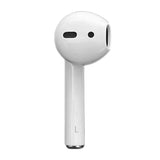
The model number is printed on the flat face of the earpiece stem
🔍 Where to look
Hold the earpiece with the stem pointing down. On the flat inner face of the stem you’ll find a tiny grey number starting with “A” — e.g. A2931.
Your left and right earpieces each have a different A number. You only need the one from the earpiece you’re replacing.
2Model Number on Charging Case

Open the lid and look inside — the model number is printed near the hinge
🔍 Where to look
Open the lid of your charging case and look at the inside of the lid. The model number (starting with “A”) is printed in small text near the hinge area.
3Can’t Read It? Find Your Model Number on iPhone
📱 Make sure your AirPods are connected to your iPhone first
Both methods below require your AirPods to be connected via Bluetooth before they will show up in Settings.
Via Bluetooth Settings
-
1Open the Settings app on your iPhone
-
2Tap Bluetooth
-
3Find your AirPods in the list and tap the “i” icon next to their name
-
4Scroll down to find the Model Number
Via General › About
-
1Open Settings › General › About
-
2Scroll down and tap AirPods (only visible when connected)
-
3The model number is listed here
✓ Tip: The model number shown on your iPhone (e.g. A2931) is exactly what you type into our AirPods Parts Finder — we’ll identify your model instantly.