Need help choosing the right product or have a question about a repair? Leave your details and we’ll call you back as soon as possible.
Pickup available from Balwyn, VIC 3103
Order any 2 items and receive a Mystery Gift —add a 4th and get $10 gift card!
Pickup available from Balwyn, VIC 3103
Order any 2 items and receive a Mystery Gift —add a 4th and get $10 gift card!
Pickup available from Balwyn, VIC 3103
Order any 2 items and receive a Mystery Gift —add a 4th and get $10 gift card!
Pickup available from Balwyn, VIC 3103
Order any 2 items and receive a Mystery Gift —add a 4th and get $10 gift card!
Pickup available from Balwyn, VIC 3103
Order any 2 items and receive a Mystery Gift —add a 4th and get $10 gift card!
Pickup available from Balwyn, VIC 3103
Order any 2 items and receive a Mystery Gift —add a 4th and get $10 gift card!
What Is a Fusion Drive? Which Macs Have One, and How to Upgrade It
Fusion Drive Explained
What a Fusion Drive is, which Macs have one, and the simplest way to upgrade or repair it.
HDD + SSDTwo drives, one volume
iMac2012–2020
Check in a minuteAbout This Mac
SSD upgradeSimple to advanced
If your iMac or Mac mini is slowing down — or its drive has failed — there's a good chance it has a Fusion Drive. Here's a simple guide to what a Fusion Drive is, how to tell what's actually inside your Mac, and the easiest way to upgrade or repair it.
What is a Fusion Drive?
A Fusion Drive is Apple's way of combining two different drives into one. It pairs a large traditional hard drive (HDD) — usually 1TB, 2TB or 3TB — with a small, fast solid-state drive (SSD), typically between 24GB and 128GB.
macOS treats the pair as a single volume. Behind the scenes it automatically keeps macOS and the files you use most on the speedy SSD, while everything else lives on the roomy hard drive. The result is the big capacity of a hard drive with some of the snappiness of an SSD — all showing up as one drive on your desktop.
In short: a Fusion Drive = a big hard drive + a small SSD, blended by macOS into one drive. It's faster than a plain hard drive, but not as fast as a full SSD.
Which Macs have a Fusion Drive?
Apple offered Fusion Drives from late 2012 onwards, mainly in its desktop machines:
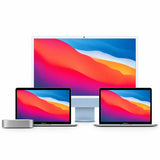
iMac (21.5″ and 27″) — from late 2012 through to the 2019–2020 models, as a standard or built-to-order option.
Mac mini — late 2012, 2014 and 2018 models in certain configurations.
Because a Fusion Drive was a paid option, two identical-looking iMacs from the same year can have completely different storage inside — one Fusion Drive, one plain hard drive, one pure SSD. That's exactly why it's worth checking what's in yours before buying an upgrade.
How to tell if your iMac has an HDD, SSD or Fusion Drive
You can find out in under a minute:
Click the Apple menu → About This Mac.
Open the Storage tab (on newer macOS, choose More Info and scroll down to Storage).
Under your drive you'll see one of: “Fusion Drive”, “Flash Storage” (a pure SSD), or a spinning hard-drive type.
For more detail, hold Option and choose System Information, then look under Storage — a Fusion Drive will list both an SSD and a separate hard disk. Still not sure? Send us your Model ID and we'll confirm it for you.
What happens when a Fusion Drive fails?
In a Fusion Drive, it's almost always the hard drive that fails — spinning hard drives wear out over time, while the SSD portion is far more reliable. The good news is that in most cases only the hard drive needs replacing. The small SSD blade sits on the logic board and, if it's healthy, can stay exactly where it is.
Occasionally the SSD/flash part is the faulty component. If that's the case, it will need to be removed or replaced — a more involved job, because that module sits behind the logic board.
The takeaway: most Fusion Drive problems are just the hard drive. Replace that failed hard drive with an SSD and your Mac ends up faster than it ever was new.
Your upgrade & repair options
How big a job it is depends on what's inside your iMac:
Hard-drive-only iMac — the simplest job. You replace the 3.5″ hard drive with a 2.5″ SSD (using a mounting bracket, and on some models a thermal-sensor cable). It's a big speed jump with minimal complexity.
Fusion Drive iMac. In most cases you replace the failed hard drive with an SSD. If the SSD blade on the logic board is healthy, it stays put; if it's faulty, it's removed or replaced. If you decide to keep the small SSD, format it first — that way your Mac won't confuse it with your new SSD when you reinstall macOS.
iMac that was ordered with SSD (flash) storage. To add capacity you have two routes: upgrade the PCI Express (blade) SSD itself, or fit a 2.5″ SSD using a hard-drive cable so the machine gains a second internal drive.
PCI Express / blade SSD upgrades — the most complex. The flash module sits behind the logic board, so the entire iMac has to be dismantled to reach it. This takes time and some hands-on experience — it's not a beginner job.
Before you start — important warnings
Opening an iMac is very doable, but please take these seriously:
Back up your data first. Any drive work risks data loss — make a full Time Machine or clone backup before you begin. No exceptions.
Respect the power supply. There's a high-voltage power supply inside. Disconnect the power lead and avoid touching the PSU components.
Remove the screen gently. iMac screens are held on with adhesive and lifted using a special cutting tool (included in our upgrade kits). Work slowly and evenly so you don't crack the glass or panel.
Be gentle with the display cables. The thin LCD data and power cables between the screen and logic board tear easily — ease each connector off carefully, and never yank them.
If in doubt, don't force it. A blade / PCI Express SSD job in particular is best left to someone experienced.
Not sure which drive your iMac has — or which SSD you need?
Find your exact model and the right SSD and install kit on our SSD for iMac page, or let our certified technicians fit it for you.