




How to Install a Display Driver Board in an iMac 21.5" (2012–2017, Non-Retina)
Give your retired iMac 21.5" a new life as a high-quality external monitor. This guide walks you through removing the internal components, installing the Macfixit Display Driver Board, and connecting it to any Mac or PC via DisplayPort to USB-C.


What's in the Kit
- LCD Display Driver Board
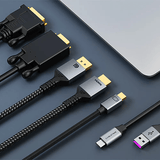
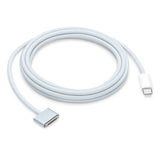
- DisplayPort to USB-C cable
- Display adhesive cutter
- Replacement display adhesive strips
- Power adapter
Tools You'll Need
- T8 & T10 Torx screwdrivers
- Flat-head screwdriver (for power port)
- Plastic pry tool / spudger
- Double-sided foam tape
- Anti-static wrist strap (recommended)
Part 1
Disassembly
Confirm your iMac model
Confirm you have an iMac 21.5" Non-Retina (2012–2017) — check the label on the bottom of the stand. Place the iMac screen-down on a soft surface like a towel or foam pad to protect the glass.
Cut the display adhesive

Using the included display adhesive cutter, carefully slice through the adhesive tape around the entire perimeter of the glass. Apple used adhesive to secure the front display panel on these models — work all the way around before lifting.
Lift the display and disconnect the cables


Gently lift the display panel — do not pull it too far yet, as it is still connected by two cables. Disconnect the display data cable (eDP connector) and the backlight power cable. Once disconnected, carefully set the display panel aside — this is the panel you will reuse as your new monitor.
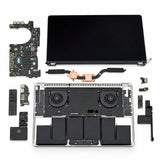
Remove internal components

Remove all internal hardware that is no longer needed:
- Hard drive and its bracket
- Power supply unit
- Cooling fans
- Logic board (motherboard)
- Speakers (optional)
Use T8 and T10 Torx screwdrivers. Keep track of your screws and remove cables gently to avoid damaging the frame. Speakers can remain if they do not interfere with mounting.
Part 2
Driver Board Installation
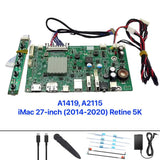
Understand the driver board components


Before installing, familiarise yourself with the driver board components and which ports you will be using during installation.
Check the driver board connections

Identify the key ports on the board: the eDP connector, backlight power socket, DisplayPort input, and DC power jack. All connections must be made for the display to function correctly.
Connect all cables — eDP, backlight, DisplayPort and power

- Disconnect the built-in eDP cable from the iMac display panel.
- Connect the new eDP cable from the kit to the driver board and to the display.
- Attach the backlight power cable to both the board and the display.
- Connect the controller board and plug in the DisplayPort and power cable.
- Verify all connections are fully seated before proceeding.
Relocate the power port assembly

Locate the power port assembly inside the enclosure. Remove the securing screw, then carefully use a flat-head screwdriver to pry the port away from the chassis. The port is held with strong adhesive — apply steady, firm pressure to break the bond and extract it cleanly.
Mount the controller board

Use double-sided tape to secure the display driver board inside the iMac housing. Mount the controller board at the back of the chassis or near the power adapter location for easy access to the DisplayPort and power ports.
Part 3
Testing & Reassembly
Test the display before reassembling
Before closing the unit, run a test:
- Power on the board and wait for the green indicator light.
- Connect the controller board to your computer using the DisplayPort to USB-C cable.
- Plug in the power supply and turn the display on.
- Use the OSD buttons on the controller board to select the correct input if needed.
If everything is connected correctly, the iMac panel should power up and show your computer's display.
Clean up and reassemble


Once confirmed working:
- Route all wires neatly inside the chassis using cable ties where needed.
- Secure the controller board and OSD button board with double-sided tape.
- Reattach the glass panel using the supplied adhesive strips.
Your iMac 21.5" is now a fully functional external monitor. Note: the DisplayPort-to-USB-C cable and power adapter will remain outside the iMac.
Part 4
Language Setup
Change the OSD language to English (if needed)


If the OSD menu appears in a non-English language, use the following sequence to switch to English:
Menu → Down (6 times) → Menu (3 times)
After completing this, the menu language will be set to English.
Reference
Troubleshooting
| Issue | Likely Cause | Solution |
|---|---|---|
| No image on screen | Loose eDP or power cable | Re-seat the eDP cable at both ends |
| Monitor not detected | USB-C port lacks DisplayPort Alt Mode | Try a Thunderbolt or USB4 port |
| Screen flickers | Loose power connection | Check the DC barrel connector on the board |
| Very dim image | Backlight cable not seated | Re-seat the backlight power connector |
| OSD in non-English language | Default language setting | Follow Step 12 above |
Installation Complete!
Your iMac 21.5" (2012–2017) Non-Retina is now a fully functional external monitor. Camera and speakers are no longer active — but you've given your iMac a great second life.
Buy the Display Driver Board →Questions? Email us at helpdesk@macfixit.com.au
Important: where to place the double-sided tape
When you mount the driver board, the double-sided foam tape must only touch a bare, flat area of the board. If the tape is placed over the pin headers, solder pads or components, it can bridge the contacts and cause a short circuit — which can permanently damage the board. Take a moment to position the tape correctly before pressing it down.


The board pictured is a sample from our workshop — yours may look slightly different depending on your model, but the same rule applies to every board: keep the tape clear of pins, solder pads and components.